Sign In | Join Free | My infospaceinc.com
China Shenzhen Xinxiantong Technology Co., Ltd. logo
Shenzhen Xinxiantong Technology Co., Ltd.
我们致力于通过持续为全球客户提供创新的产品、可靠的质量和长期的合作价值,成为显示技术领域值得信赖的全球合作伙伴。
Verified Supplier

1 Years

Home > HDMI LCD Display >

7 Inch IPS TFT Screen 800x480 5 Point Capacitive Touch Screen Raspberry Pi Compatibility

Shenzhen Xinxiantong Technology Co., Ltd.
Trust Seal
Verified Supplier
Credit Check
Supplier Assessment
Contact Now

7 Inch IPS TFT Screen 800x480 5 Point Capacitive Touch Screen Raspberry Pi Compatibility

Packaging Details : 154*143*38(mm)/180g

Color Gamut : 72 % of NTSC(Typ.)

Place of Origin : Guangdong, China

Response Time : 6ms

Viewing Area : 116.2mm×87.1mm

Supply Ability : 50K/Month

Lumens Degrees : 1000cd/m²

Storage Temperature : -30℃~80℃

Brand Name : XXT

MOQ : 100

Price : $23.5-26.5/pieces

Delivery Time : 30-45days

Display Mode : Normally White, Transmissive

Display Color : Monochrome Black and White

Interface : RGB, SPI, MIPI, LVDS, or Parallel

Controller Ic : SSD1316

Operating_Temperature : -20°C to 70°C

Lcm Dimension : 34.60(H) X 47.80(V) X 1.90(T)

Drive System : a-Si TFT active matrix

Signal Interface : LVDS

Payment Terms : T/T

Outline : 118.5×84.7×5.2 mm

Model Number : YQ84-7

View Direction : free/all

Contact Now

7 Inch IPS TFT Screen With 5 Point Touch / Raspberry Pi Compatibility
Detail Information
Place of Origin
China
Brand Name
xXT
Certification
CE/ROHS
Model Number
YQ84-7
Type:
IPS TFT Screen
Display Size:
7 Inch
Supplier Type:
Factory
Video Input:
HDMI
Highlight:

7 Inch IPS TFT Screen Display

,

5 Point Capacitive Touch Screen Display

,

Raspberry Pi 7 Touchscreen Display

Product Description
7 Inch IPS TFT Screen with 5 Point Touch and Raspberry Pi Compatibility
Product Description
7 Inch 800x480 HDMI Display CTP IPS TFT Touch Screen for Raspberry Pi
  • 7" standard display, 800 × 480 hardware resolution, up to 1920x1080 software configuration resolution
  • Capacitive touch screen with 5-point touch support
  • Independent backlight control for power saving
  • Compatible with Raspberry Pi, BB Black, Banana Pi and other mainstream mini PCs
  • Can function as a general-purpose HDMI monitor (e.g., computer sub-display)
  • Works with Raspbian, Ubuntu, Kali-Linux, Kodi, and Win10 IOT (single-touch, free driver)
  • Functions as a PC monitor supporting Win7, Win8, Win10 systems (5-point touch; XP and older: single-point touch)
  • CE and RoHS certified
Product Parameters
Size 7.0 inch
SKU MPI7001
Resolution 800 × 480 dots
Touch 5 point capacitive touch
Dimensions 164.9 × 124.27 (mm)
Weight 380 g (package included)
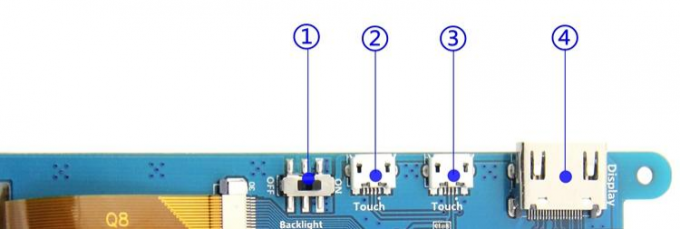
Hardware Description
Backlight Power switch: Controls the backlight turned on and off to save power.
②③USB Touch / power supply connector: For power supply and touch output, the functions of the both
are the same, can just use one of them.
HDMI interface: For connecting motherboard and LCD monitor to HDMI transmission.
How to Use with Raspbian/Ubuntu Mate/Win10 IoT Core System
Step 1: Install Raspbian Official Image
  • Download the latest image from the official source
  • Install the system following official tutorial steps
Step 2: Modify "config.txt"

After installation, open the config.txt file in the Micro SD Card root directory and add the following code at the end:

max_usb_current=1
hdmi_force_hotplug=1
config_hdmi_boost=7
hdmi_group=2
hdmi_mode=1
hdmi_mode=87
hdmi_drive=1
hdmi_cvt 800 480 60 6 0 0 0

Save and safely eject the Micro SD Card.

Step 3: Connect and Test
  • Insert Micro SD Card into Raspberry Pi
  • Connect Raspberry Pi and LCD with HDMI cable
  • Connect USB cable between Raspberry Pi and LCD
  • Power on Raspberry Pi (use full 2A power supply)
Display Rotation Configuration

1. Open config.txt:

sudo nano /boot/config.txt

2. Add rotation statement (example for 90° rotation):

display_rotate=1 #0: 0; 1: 90; 2: 180; 3: 270

3. Save and restart:

sudo reboot
Touch Rotation Configuration

1. Install libinput:

sudo apt-get install xserver-xorg-input-libinput

2. Create xorg.conf.d directory (if needed):

sudo mkdir /etc/X11/xorg.conf.d

3. Copy configuration file:

sudo cp /usr/share/X11/xorg.conf.d/40-libinput.conf /etc/X11/xorg.conf.d/

4. Edit configuration file:

sudo nano /etc/X11/xorg.conf.d/40-libinput.conf

5. Add calibration matrix (example for 90° rotation):

Option "CalibrationMatrix" "0 1 0 -1 0 1 0 0 1"

6. Restart Raspberry Pi:

sudo reboot
Rotation parameters:
0°: "1 0 0 0 1 0 0 0 1"
90°: "0 1 0 -1 0 1 0 0 1"
180°: "-1 0 1 0 -1 1 0 0 1"
270°: "0 -1 1 1 0 0 0 0 1"
How to Use as PC Monitor
  • Connect computer HDMI output to LCD HDMI interface
  • Connect LCD's USB Touch interface (either MicroUSB) to device USB port
  • For initial testing, use LCD as the only monitor (disconnect other monitors)

Product Tags:

7 Inch IPS TFT Screen


IPS TFT Screen 800x480 5


800x480 5 Point Capacitive Touch Screen

      
Quality 7 Inch IPS TFT Screen 800x480 5 Point Capacitive Touch Screen Raspberry Pi Compatibility for sale

7 Inch IPS TFT Screen 800x480 5 Point Capacitive Touch Screen Raspberry Pi Compatibility Images

Inquiry Cart 0
Send your message to this supplier
 
*From:
*To: Shenzhen Xinxiantong Technology Co., Ltd.
*Subject:
*Message:
Characters Remaining: (0/3000)